
This post contains affiliate links. As an Amazon Associate, I earn from qualifying purchases at no extra cost to you.
Drawing with a finger on a touchscreen frustrates most kids: lines come out wobbly and nothing looks like what they had in mind. A basic pen tablet gives them pencil-like control that makes finishing a digital drawing realistic. The challenge is telling apart the drawing tablets that genuinely work for kids from the ones that just collect dust after two weeks.
The good news is that the best drawing tablet for kids doesn’t have to cost a fortune. The market in 2026 has excellent budget options — and even at the entry level, you’re getting real pressure sensitivity, a battery-free stylus, and full compatibility with popular free drawing apps like Krita, Sketchbook, and Clip Studio Paint. What matters is knowing which features actually count for a 9-year-old versus which specs are just marketing numbers.
After researching and comparing three of the most popular kid-friendly options — the Wacom Intuos Small, the Huion Inspiroy H640P, and the XPPen Deco 640 — here’s how they compare.
My Top Pick — Wacom Intuos Small
If I had to recommend one drawing tablet for a kid between the ages of 8 and 14, it’s the Wacom Intuos Small without hesitation. Based on specs and verified owner reviews, the pen technology is simply better than anything else at this price — more responsive, more natural-feeling, and more forgiving for kids who are still developing their control and technique.
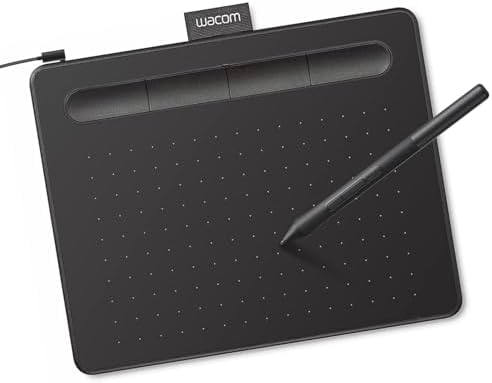
- Wacom Intuos Small Graphics Drawing Tablet: Enjoy industry leading tablet performance in superior control and precision …
- Works With All Software: Wacom Intuos tablet can be used in any software program to explore new facets of digital creati…
- What the Professionals Use: Wacom’s industry leading pen technology and pen to paper feeling makes it the preferred draw…
Best Drawing Tablet for Kids — Quick Comparison


| Product | Price Tier | Active Area | Pressure Levels | Best For |
|---|---|---|---|---|
| Wacom Intuos Small | Mid-range | 6.0 × 3.7 in | 4,096 | Ages 8–14, best overall quality |
| Huion Inspiroy H640P | Mid-range | 6.3 × 3.9 in | 8,192 | Value seekers, higher spec numbers |
| XPPen Deco 640 | Budget | 6.3 × 3.5 in | 16,384 | Absolute beginners, Chromebook users |
Reviews — Detailed Breakdown
1. Wacom Intuos Small — Best Overall
- Wacom Intuos Small Graphics Drawing Tablet: Enjoy industry leading tablet performance in superior control and precision …
- Works With All Software: Wacom Intuos tablet can be used in any software program to explore new facets of digital creati…
- What the Professionals Use: Wacom’s industry leading pen technology and pen to paper feeling makes it the preferred draw…
Key Specs
- Active area: 6.0 × 3.7 inches
- Pressure sensitivity: 4,096 levels
- Pen: Battery-free (no tilt support)
- ExpressKeys: 4 customizable buttons
- Compatibility: Windows, Mac, Chromebook, Android
- Price tier: Mid-range
Who this is for: Kids ages 8 and up who want to actually learn digital drawing, not just doodle — and parents who want a tablet that’ll grow with their child through years of use.
The first thing parents mention is how naturally kids hold the Wacom pen like a pencil — which sounds obvious, but matters more than you’d think. The Intuos pen has a slightly textured grip zone and a weight distribution that just feels right in a kid’s hand. It’s not as light as a regular pencil, but it’s close enough that the transition from paper drawing to tablet drawing feels intuitive rather than awkward. Parents often report that within the first session, kids stop complaining about the lines “not doing what I want” — a major turning point.
The 4 ExpressKeys on the left side of the tablet deserve a mention here. Most kids ignore them at first, but within a week or two, kids who are starting to use software like Krita or Sketchbook naturally reach for the undo key without even looking. Having four programmable shortcuts at their fingertips speeds up the learning process significantly. Setting two of them to Ctrl+Z (undo) and Ctrl+S (save) — the two operations kids use most — makes the whole experience feel more like a proper art tool than a toy.
Owners consistently report that Wacom’s pen technology has a more natural “give” to it — the lines start and stop with better intention, and the pressure curve feels more like a real brush or pencil. Where Huion and XP-Pen tablets can sometimes feel slightly laggy at the start of a stroke, the Wacom pen tracks from the very first point of contact. For adults, this difference might be minor. For an 8-year-old who’s just learning to control line weight, it’s the difference between enjoying the experience and getting frustrated.
The one honest trade-off: the Intuos Small’s active area is slightly smaller than the Huion and XP-Pen competitors. At 6.0 × 3.7 inches, it’s a comfortable size for small hands, but a 14-year-old who wants to draw full-page illustrations might find it cramped. For most kids in the 8–12 range, though, it’s completely fine — drawing on a small area actually teaches better arm control.
What stands out:
- Pen feel is genuinely the best in this price range — starts and stops with real intention
- 4 customizable ExpressKeys make kids feel like real artists surprisingly quickly
- Includes access to Wacom’s training videos and software bundle (Clip Studio Paint Elements + Corel Painter Essentials)
- Build quality is noticeably better than alternatives — the tablet surface has a slight tooth that mimics paper
What could be better:
- Only 4,096 pressure levels vs. 8,192 on the Huion and 16,384 on the XPPen — owners rarely report feeling the difference, but the spec number looks worse in comparisons
- No wireless option at this price point
Bottom line: The Wacom Intuos Small is our top recommendation for a kid getting serious about digital art. The pen feel, software bundle, and build quality make it the strongest all-rounder at roughly the same price as the competition.
2. Huion Inspiroy H640P — Best Value
- [Customize Your Workflow]: The 6 easy accessable press keys on the H640P drawing tablet for pc can be customized to your…
- [Nature Pen Experience]: The included battery-free stylus PW100 with 8192 levels of pressure sensitivity is light and ea…
- [Compact and Portable]: H640P digital drawing tablet uses a compact design with 0.3 inch in thickness and 1.41 lbs in we…
Key Specs
- Active area: 6.3 × 3.9 inches
- Pressure sensitivity: 8,192 levels
- Pen: Battery-free PW100 stylus (no tilt support on this tablet)
- ExpressKeys: 6 customizable buttons
- Compatibility: Windows, Mac, Android, Linux (Chromebook not on Huion’s official list)
- Price tier: Mid-range
Who this is for: Families who want the most specs per dollar, or kids who are already past the complete beginner stage and want a larger active area with more shortcut keys.
The Huion H640P is a surprise on the spec sheet — for roughly the same price as the Wacom Intuos Small, you get 8,192 pressure levels (double the Wacom’s 4,096), a slightly larger active area, and two more ExpressKeys. On paper, it looks like a clear winner. In practice, owner reviews suggest the experience is a little more nuanced.
The H640P’s active area is 6.3 × 3.9 inches — noticeably bigger than the Wacom’s 6.0 × 3.7. For a kid who draws characters and wants room to work with full-body poses or landscapes, that extra space is genuinely noticeable. The six shortcut keys are also a real advantage; you can set them to undo, redo, save, zoom in, zoom out, and brush resize — covering most of what a kid will need without ever touching the keyboard.
The pen itself is battery-free, so there is nothing to charge. Note that Huion lists tilt as unsupported on the H640P, so line weight comes from pressure alone. If tilt-based shading matters to your child, the XPPen Deco 640 is the only tablet of the three that supports it.
The honest trade-off is that Huion’s driver software can be more finicky than Wacom’s, especially on Chromebooks. The initial setup takes a few extra minutes — not difficult, but worth knowing about before you hand it to a child who’s expecting to plug in and start drawing immediately. Once it’s set up, it works smoothly. Also, Huion doesn’t include drawing software in the box at this price tier, so you’ll need to point your child toward free options like Krita or Sketchbook (both excellent and genuinely free).
One detail owners appreciate: the H640P’s surface has a slight texture to it, similar to the Wacom, which makes the pen feel more natural than drawing on a completely smooth surface. It’s a small detail, but it adds up over a long drawing session — the pen doesn’t slide around unpredictably.
What stands out:
- 8,192 pressure levels — double the Wacom’s spec at a similar price tier
- 6 ExpressKeys give kids more shortcuts to work with
- Largest active area of the three at 6.3 × 3.9 inches — welcome for older kids
- Android and Linux compatibility in addition to Windows and Mac
What could be better:
- Driver software setup takes longer and is less reliable on Chromebooks than Wacom’s
- No bundled drawing software — you’ll need to set up Krita or similar yourself
- Pen feel is slightly less natural at stroke start/stop compared to Wacom
Bottom line: The Huion H640P is a legitimate competitor to the Wacom at the same price. For a kid who’s already been drawing digitally for a few months and wants to upgrade, it’s a strong choice. First-timers may find the Wacom’s more plug-and-play experience less frustrating to start with.
3. XPPen Deco 640 — Best for Absolute Beginners
- Industry-leading 16K Pressure Levels: The graphic drawing tablet adopts the groundbreaking 16K pressure sensitivity leve…
- Ergonomic Design: The ultra-narrow and curved edge design provides a spacious drawing area and reduces wrist fatigue. To…
- Your Perfect Partner for playing OSU: Want to get fully prepared for OSU? Deco 640 OSU pad offers an immersive gaming ex…
Key Specs
- Active area: 6.3 × 3.5 inches
- Pressure sensitivity: 16,384 levels
- Pen: Battery-free stylus, 60° tilt support
- ExpressKeys: 8 soft shortcut buttons
- Compatibility: Windows, Mac, Android, Chrome OS, Linux
- Price tier: Budget
Who this is for: Kids who are completely new to drawing tablets and parents who want an affordable, feature-complete starter kit — the XPPen Deco 640 is the most accessible entry point that still delivers real shortcut keys and the highest pressure sensitivity of the three.
The XPPen Deco 640 is XP-Pen’s current entry-level tablet, and it’s a clear step up from older beginner models. As the lowest-priced tablet here, it still gives you 16,384 pressure levels, 8 soft shortcut keys, a battery-free stylus with 60° tilt support, and a 6.3 × 3.5 inch active area. The fact that it is the only one of the three with tilt and beats everyone on pressure levels makes it look like an obvious value pick, but as always, the real-world experience matters more than the spec sheet.
The Deco 640 is also the lightest and slimmest of the three (about 0.37 lb and 0.3 inches thick, per XPPen), which makes it easy for kids to move between a desk and a backpack. Note that XPPen’s official box contents don’t list an artist’s glove, so pick one up separately if your child wants to avoid hand drag on the surface.
The 8 soft shortcut keys are a meaningful addition at this price point. They’re rubber buttons rather than hard switches, which makes them easier for small fingers and reduces accidental activation. For a beginner using Krita or Sketchbook, mapping a couple to undo and save keeps the drawing flow going without constant keyboard reaching. With two more keys than the Huion’s six, there’s plenty of room to build good habits early.
Where the Deco 640 trails the Wacom: pen feel. The pen is lighter than the Wacom’s — which some kids prefer, but others find slightly less substantial. Wacom’s pen technology also has a more natural “give” at the start and end of strokes, while the Deco 640 can feel slightly less intentional in very precise linework. For a beginner at ages 7–9, this is a non-issue. For an older child doing detailed character art, the Wacom’s pen response will feel more rewarding. Driver setup is also slightly more involved than Wacom’s, particularly on Chromebooks — not difficult, but worth knowing ahead of time.
What stands out:
- Lightest and slimmest of the three — easy for kids to carry
- 60° tilt support — the only tablet of the three with tilt shading
- 8 soft shortcut keys at the entry price — gives beginners room to grow
- 6.3 × 3.5 inch active area — similar drawing space to the Wacom
- 16,384 pressure levels — highest spec of the group at the lowest price tier
What could be better:
- Pen feel is lighter and less substantial than the Wacom — matters for older kids doing detailed work
- Driver setup is more involved than Wacom’s, especially on Chromebook
- Driver updates occasionally lag behind new OS releases compared to Wacom
Bottom line: Buy this if you want the most specs per dollar at the entry level — 16,384 pressure levels, 8 shortcut keys, and tilt support, all at the lowest price tier of the three. For younger kids or first-timers, it’s the most complete starter kit of the three. If your kid is already serious about art, the Wacom’s pen feel or the Huion’s larger drawing area might ultimately serve them better.
How to Choose a Drawing Tablet for Kids: What Actually Matters
Active Area Size: Smaller Than You Think Is Fine
Most parents instinctively reach for the biggest tablet, assuming more space equals better drawing. The truth is more nuanced. The active area of a drawing tablet maps to your full screen — which means a 6-inch active area isn’t “only 6 inches of drawing space,” it’s the full mapping of your computer display into 6 inches of physical movement. Smaller active areas actually require less arm movement per stroke, which can help kids develop better fine motor control. That said, if your child specifically wants to draw full-page illustrations with wide, sweeping arm movements, a larger active area (like the Huion’s 6.3 × 3.9) will feel less cramped. For most kids ages 7–12, any of the three options above is appropriately sized.
Pressure Sensitivity: 4,096 vs. 8,192 vs. 16,384 — Does It Actually Matter for Kids?
The difference between these pressure levels is genuinely measurable in a lab. In a real child’s drawing session, I’d argue it’s not something they’ll notice. Pressure sensitivity determines how precisely the tablet detects the difference between a light touch and a heavy press — but all three options are far beyond what a beginner can consciously control. A professional illustrator doing commercial work might find higher pressure levels smoother in very detailed shading work. A 10-year-old learning to draw? They’ll get more benefit from practicing their pencil-like stroke control than from chasing spec numbers. Don’t let pressure levels drive your decision — focus on pen feel and software compatibility instead.
Budget Tiers: What You Actually Get
The entry-level budget tier is the sweet spot in 2026 — the XPPen Deco 640, Wacom Intuos Small, and Huion H640P all land here, covering entry-level through advanced beginner needs. All three will genuinely teach a child digital drawing skills, and none will feel limiting for several years. A child who gets any tablet in this range is unlikely to outgrow the hardware anytime soon. One step up in price, you’re starting to look at wireless tablets or larger active areas — worth considering for older kids 12 and up who are seriously interested in art and will actually use the extra features.
Software: What Free Apps Work Best With These Tablets
This question matters as much as the tablet itself. The good news: the best drawing app for kids is completely free. Autodesk Sketchbook went free in 2021 and remains one of the most kid-friendly interfaces available — clean, intuitive, and works with all three tablets recommended here. Krita is the other top choice, especially for kids interested in learning proper illustration techniques — it has a steeper learning curve than Sketchbook, but it’s professional-grade software at no cost. Both apps have active YouTube communities with tutorials aimed at beginners and kids specifically, which makes self-guided learning much more realistic than with older drawing apps.
Related STEM Guides for Kids
- Best Drawing Tablet for Beginners — when they outgrow the kids model
- Best 3D Pen for Kids — draw in three dimensions
- Best Kids Camera — another creative gift idea
Frequently Asked Questions
What is the best drawing tablet for a child?
For most kids, the Wacom Intuos Small is the best starting point. The pen feel is more natural than competitors at the same price, the included software bundle adds real value, and the build quality means it’ll survive years of use. If budget is a priority, the lower-priced XPPen Deco 640 is a solid runner-up.
What age can kids start using a drawing tablet?
Most kids can meaningfully use a drawing tablet from around age 7–8, once they have the fine motor control to hold a stylus and focus on screen feedback simultaneously. Younger kids ages 4–6 usually do better with LCD writing tablets or touchscreen-based drawing, where the surface and screen are in the same place. The tablets in this review are screen-less pen tablets — the child draws on the tablet surface while looking at the computer screen, which requires a small learning curve.
Do kids need a computer for a drawing tablet?
Yes — all three tablets in this review connect to a computer (Windows, Mac, or Chromebook). The Huion H640P and XPPen Deco 640 also work with Android phones and tablets. If you’re looking for a standalone screen-based drawing device that works without a computer, you’d be looking at something like an iPad with Apple Pencil, which is a different and more expensive category entirely.
Is a drawing tablet better than an iPad for kids?
It depends on the use case. An iPad with Apple Pencil is more versatile — it’s a tablet, a game device, a learning tool, and a drawing tool all in one. A dedicated pen tablet like the Wacom or Huion is specifically optimized for drawing and costs a fraction of the price. For a child whose primary goal is learning digital art and illustration, an entry-level pen tablet plus a free app like Krita will teach them more technique than an iPad that costs several times as much. For a child who also wants a general-purpose device, the iPad makes more sense.
Is Wacom or Huion better for kids?
Wacom has a better pen feel and plug-and-play setup, which matters a lot for younger kids who’ll get frustrated with driver setup. Huion offers higher pressure sensitivity and more shortcut keys at the same price, which is worth it for older kids who are already past the beginner stage. My general rule: under age 11, go Wacom. Ages 11 and up who already have some drawing experience can go either way.
Can a 10-year-old use a drawing tablet?
Absolutely — 10 is actually a great age to start. Kids this age have the focus to watch drawing tutorials and the fine motor skills to execute technique. Parents often report 10-year-olds making significant progress within a month of getting their first tablet, especially when paired with YouTube channels like Draw with Jazza or Art for Kids Hub, both of which are excellent for this age group.
What software do kids use with these drawing tablets?
Autodesk Sketchbook (free) is the most beginner-friendly option and the easiest to set up. Krita (free) is better for kids who want to develop more serious skills — it has more tools and a larger community. Both work perfectly with all three tablets recommended here. Avoid expensive software like Photoshop for beginners — it’s overwhelming and unnecessary at the starting stage.
What drawing tablet is best under $50 for kids?
All three tablets in this review are entry-level models aimed at this budget range, but prices change, so check current pricing via the links above. For pen quality, the Wacom Intuos Small is my first recommendation, followed by the Huion H640P for raw specs, and the XPPen Deco 640 for tilt support at the lowest price tier.
Is a drawing tablet worth it for a child?
If your child is already showing interest in drawing, art, or creative work, a drawing tablet is one of the best investments you can make. Unlike video games or YouTube, it’s a skill-building tool — kids who stick with it genuinely develop transferable creative abilities. That said, if your child hasn’t shown any interest in drawing, start with paper and pencils first to gauge genuine enthusiasm before buying the tablet.
Do drawing tablets work with Chromebooks?
Mostly. Wacom and XPPen officially list Chrome OS support for the Intuos Small and Deco 640, which is good news for families whose main computer is a school-issued or home Chromebook. Huion’s official spec sheet for the H640P lists Windows, macOS, Android and Linux only, so check compatibility with your specific Chromebook before choosing it.
Final Verdict
For most kids, I’d point squarely at the Wacom Intuos Small as the best starting point — the pen experience is the most natural, the setup is the most painless, and the included software bundle means you’re not starting from scratch. It’s the drawing tablet equivalent of buying a proper beginner guitar instead of a toy one: you pay roughly the same, but the experience is actually good enough that the child can tell they’re improving.
If your kid is 11 or older and already has some digital drawing under their belt, the Huion H640P is worth serious consideration — you get more pressure levels, more shortcut keys, and a larger drawing area for the same price. The driver setup is a bit more involved, but an older child can handle it.
And if you’re genuinely uncertain whether your child will take to digital drawing — if this is a “let’s try it for a month” situation — the lower-priced XPPen Deco 640 is the most complete starter kit of the three. Tilt support and 8 shortcut keys are welcome extras, and at the lowest price tier here you won’t feel burned if it ends up in a drawer after six weeks.
- [Customize Your Workflow]: The 6 easy accessable press keys on the H640P drawing tablet for pc can be customized to your…
- [Nature Pen Experience]: The included battery-free stylus PW100 with 8192 levels of pressure sensitivity is light and ea…
- [Compact and Portable]: H640P digital drawing tablet uses a compact design with 0.3 inch in thickness and 1.41 lbs in we…
- Wacom Intuos Small Graphics Drawing Tablet: Enjoy industry leading tablet performance in superior control and precision …
- Works With All Software: Wacom Intuos tablet can be used in any software program to explore new facets of digital creati…
- What the Professionals Use: Wacom’s industry leading pen technology and pen to paper feeling makes it the preferred draw…
- Industry-leading 16K Pressure Levels: The graphic drawing tablet adopts the groundbreaking 16K pressure sensitivity leve…
- Ergonomic Design: The ultra-narrow and curved edge design provides a spacious drawing area and reduces wrist fatigue. To…
- Your Perfect Partner for playing OSU: Want to get fully prepared for OSU? Deco 640 OSU pad offers an immersive gaming ex…
See full specs on Wacom’s official product page.
For more STEM picks for kids, check out our guides on the best coding robots for kids and best AI STEM toys.
Last updated: May 2026 | Prices subject to change.
Questions about any of these picks? Get in touch via our contact page.