
This post contains affiliate links. As an Amazon Associate, I earn from qualifying purchases at no extra cost to you.
Finding the right drawing tablet for beginners is weirdly stressful. There are dozens of options, the spec sheets all look the same, and honestly — it’s easy to buy the wrong one and give up on digital art before you even start. Plenty of beginners go through that cycle, and you don’t have to repeat it.
After comparing drawing tablets across different price points and skill levels, based on specs, verified owner reviews and manufacturer data, I’ve narrowed it down to three that actually make sense for beginners in 2026. Whether you’re starting with digital illustration, photo editing, or just want to try something new, one of these will work for you — and none of them will empty your wallet.
My Top Pick — Wacom Intuos Small
The Wacom Intuos Small is the one I’d hand to a friend who’s never used a drawing tablet before. It’s not flashy, but owners consistently say it works flawlessly out of the box and the pen feels immediately natural, and Wacom’s software bundle means you’re not scrambling to find a drawing app on day one. Sitting in the budget tier, it’s also priced where a beginner can actually justify the purchase without overthinking it.
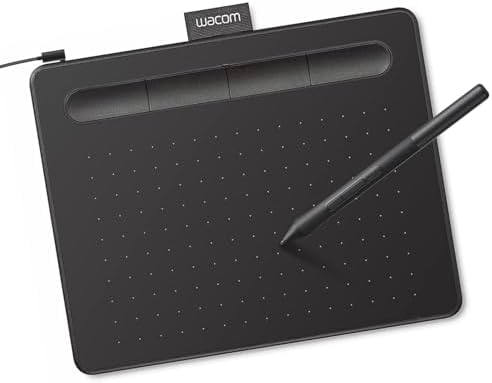
- Wacom Intuos Small Graphics Drawing Tablet: Enjoy industry leading tablet performance in superior control and precision …
- Works With All Software: Wacom Intuos tablet can be used in any software program to explore new facets of digital creati…
- What the Professionals Use: Wacom’s industry leading pen technology and pen to paper feeling makes it the preferred draw…
Best Drawing Tablet for Beginners — Quick Comparison


Reviews — Detailed Breakdown
1. Wacom Intuos Small (B079HL9YSF) — Best Overall
- Wacom Intuos Small Graphics Drawing Tablet: Enjoy industry leading tablet performance in superior control and precision …
- Works With All Software: Wacom Intuos tablet can be used in any software program to explore new facets of digital creati…
- What the Professionals Use: Wacom’s industry leading pen technology and pen to paper feeling makes it the preferred draw…
Key Specs
- Active area: 6.0 × 3.7 inches
- Pen pressure: 4,096 levels
- ExpressKeys: 4 customizable
- Connection: Micro-USB on the tablet, USB-A on the computer (Bluetooth version also available)
- Compatibility: Windows, Mac, Chromebook, Android
- What’s included: Intuos pen, 3 replacement nibs, software vouchers (Corel Painter Essentials + Clip Studio Paint)
Who this is for: Anyone starting digital art from scratch who wants zero frustration during setup and a pen that feels like the real thing on day one.
The first thing owners mention about the Intuos Small is how compact it is — about the size of a paperback book. It sits next to your keyboard without taking over your desk, which matters more than you’d think once you’re actually working. The build is sturdy matte plastic, not premium, but reviewers say it doesn’t feel cheap either. The pen is light, well-balanced, and — crucially — requires no battery and no charging. You just pick it up and draw.
In practice, the 4,096 levels of pressure sensitivity is more than enough for a beginner. Experienced digital artists often say they couldn’t tell the difference between 4,096 and 8,192 levels until they were well past the beginner stage. What owners highlight most is how consistent the pen tracking is — there’s no lag, no jitter on slow strokes, and the cursor follows your pen exactly where you expect it to. That predictability is what makes the Wacom worth recommending above everything else at this price.
The four ExpressKeys on the left edge are a nice bonus. A popular setup is mapping them to Undo, Zoom In, Zoom Out, and Brush Size Change. Once they’re set, you stop reaching for the keyboard constantly, and the workflow just gets smoother. Owners say setup is genuinely fast — install the driver, plug in the included USB cable, and you’re drawing in under five minutes. Wacom’s software also includes vouchers for Corel Painter Essentials and Clip Studio Paint, which are both real drawing applications, not stripped demo versions.
What stands out:
- Pen tracking is buttery smooth — no lag, no hunting for cursor position
- Software bundle is actually useful (Clip Studio Paint is a full, pro-grade app)
- Works on Chromebook and Android, not just Windows/Mac — great flexibility
- Driver installation takes under 5 minutes with no restarts required
What could be better:
- Active area is on the smaller side — if you’re used to drawing big arm movements, it takes adjustment
- Only 4 ExpressKeys — power users eventually want more, though it’s fine for beginners
Bottom line: The Wacom Intuos Small is the safest first tablet you can buy. The name carries a reputation, the pen delivers on it, and the included software means you can actually start creating on day one rather than hunting for a free app that plays nicely with your hardware.
2. Huion Inspiroy H640P — Best Budget Pick
- [Customize Your Workflow]: The 6 easy accessable press keys on the H640P drawing tablet for pc can be customized to your…
- [Nature Pen Experience]: The included battery-free stylus PW100 with 8192 levels of pressure sensitivity is light and ea…
- [Compact and Portable]: H640P digital drawing tablet uses a compact design with 0.3 inch in thickness and 1.41 lbs in we…
Key Specs
- Active area: 6.3 × 3.9 inches
- Pen pressure: 8,192 levels
- Hot keys: 6 customizable
- Connection: Micro-USB (Micro-B)
- Compatibility: Windows, Mac, Linux, Android (6.0+)
- What’s included: PW100 stylus, pen stand with 8 extra nibs, USB cable, OTG adapter
Who this is for: Beginners on a tighter budget who want slightly more active area and pen pressure than the Wacom, and don’t mind a slightly more involved driver setup.
The Huion H640P sits in an interesting spot — it costs about the same as the Wacom, but it has double the pen pressure sensitivity (8,192 vs 4,096 levels) and a marginally larger active area. On paper that sounds like a clear win. In practice, owners report both tablets feel very similar under the pen — the extra pressure levels won’t make your artwork look better in year one, but they’re there if you develop a more refined technique down the line.
Where the H640P really stands out is the value package. You get six hot keys instead of four, a solid pen stand that actually doubles as nib storage (eight extras included — you won’t be buying nibs for a long time), and Linux support plus Android compatibility via the included OTG adapter. If you’re on a Linux machine and want a tablet that just works, this is a rare budget pick that actually does it.
The driver experience is slightly more hands-on than Wacom. Installation is straightforward, but you’ll want to spend 10 minutes in the Huion driver panel setting up your active area mapping and hot keys — the defaults aren’t perfect out of the box. Once configured though, owners describe it as rock solid. Over 14,000 reviews on Amazon with a 4.4-star average says something. Recent reviews from May 2026 specifically call out how well it works with MediBang Paint, Krita, and ibispaint X — all of which are free and excellent for beginners.
One thing worth flagging: the H640P uses a Micro-USB connector, not USB-C. The Wacom Intuos Small also uses Micro-USB on the tablet side, so of the three tablets here only the XP-Pen Deco 01 V3 has a USB-C port. Not a dealbreaker, but if you’re cable-minimalist it’s worth noting.
What stands out:
- 8,192 pressure levels is more headroom than you’ll need for a long time — future-proof
- Pen stand with 8 extra nibs is a genuinely thoughtful inclusion
- Linux and Android support via OTG adapter widens compatibility significantly
- Active area slightly larger than the Wacom Intuos Small
What could be better:
- Micro-USB connector feels dated in a USB-C world
- Driver setup requires more manual configuration than Wacom’s plug-and-play experience
- No bundled premium software — you’re on your own finding drawing apps
Bottom line: The Huion H640P is the better spec sheet at the same price, but the Wacom edges it on out-of-box experience and software bundle. If you already have Krita or MediBang installed and want the most tablet per dollar, go Huion. If you want the smoothest possible first experience, go Wacom.
3. XP-Pen Deco 01 V3 — Best for Larger Canvas
- Word-first 16K Pressure Levels: The upgraded stylus features 16,384 levels of pressure sensitivity and supports up to 60…
- Designed for Beginners: This drawing pad desinged with 8 customizable shortcuts for both right and left-hand users, expr…
- Perfectly Adapted for Android: The XPPen Deco 01 V3 art tablet supports connections with Android devices running version…
Key Specs
- Active area: 10.0 × 6.25 inches
- Pen pressure: 16,384 levels
- Hot keys: 8 customizable
- Connection: USB-C on the tablet (USB-C to USB-A cable plus USB-to-USB-C adapter included)
- Compatibility: Windows, Mac, Android (10.0+), Chrome OS (88+), Linux
- Pen tilt support: 60° — for brush angle simulation
- What’s included: battery-free stylus with stand, 8 replacement nibs, USB cable, USB-to-USB-C adapter, drawing glove
Who this is for: Beginners who know they want more drawing room, or anyone who’s already tried a small tablet and felt cramped — especially popular with OSU players and character illustrators who work big.
On paper, the XP-Pen Deco 01 V3 is a noticeably different proposition from the two smaller tablets. The 10×6.25 inch active area is nearly three times the working surface of the Wacom Intuos Small, and if you’ve ever felt like you were drawing in a small box, the difference is immediately obvious. Your arm moves more naturally, you’re not constantly hitting the edges mid-stroke, and working on wide compositions or detailed character illustrations just feels less cramped.
For OSU players specifically — this is one of the most recommended tablets in that community, and for good reason. The large tracking area allows for more natural full-arm movement, and 16,384 pressure levels (the highest of the three tablets here) means even subtle pen variations register cleanly. But even if you’ve never heard of OSU, the larger canvas is just a better fit if you naturally draw with sweeping motions rather than fine wrist-only movements.
What stands out is the value — it costs only slightly more than the Wacom despite being physically much larger with more pressure sensitivity and pen tilt support. The 60° tilt recognition is something neither the Wacom Intuos Small nor the Huion H640P offer at this price point, and reviewers say it makes brush strokes feel more realistic in apps like Clip Studio Paint where tilt affects brush texture.
The package also includes a pen stand, a drawing glove and a USB-to-USB-C adapter, which are nice practical touches. Eight hot keys along the left edge are fully customizable, and the driver works reliably on Windows, Mac, Linux, Chrome OS, and Android. For its price tier, it punches well above its weight.
What stands out:
- 10×6 inch active area gives you genuine room to draw — transformative if you felt cramped on smaller tablets
- Pen tilt support (60°) — rare at this price point, makes brush angles feel more natural
- 16,384 pressure levels — most refined sensitivity of the three compared
- USB-C port on the tablet — the only one of the three without Micro-USB
What could be better:
- Larger footprint requires more desk space — not ideal for very compact setups
- Android requires version 10.0+ (vs 6.0+ for the Huion) — slightly narrower mobile compatibility
- The larger active area takes getting used to — some people find smaller tablets more precise initially
Bottom line: If you’re choosing between “small and focused” vs “big and expressive,” the XP-Pen Deco 01 V3 is the clear choice for the latter. For only slightly more than the Wacom, you get nearly three times the drawing surface, tilt support, and 4× the pressure sensitivity. Beginners who find themselves sketching full figures, landscapes, or playing OSU will get significantly more mileage from this one.
How to Choose a Drawing Tablet for Beginners: What Actually Matters
Active Area Size — Small vs Large
This is the spec that matters most for feel, and it’s the one most beginners overlook. Active area is the zone on the tablet surface that maps to your screen. Smaller doesn’t mean worse — it means your hand movements are compressed to fit the screen, which can actually make fine detail work more precise. Larger means more natural arm movement but requires you to travel more distance per stroke.
A 6×4 inch tablet like the Wacom or Huion is genuinely fine for most digital art beginners — character design, photo editing, note-taking, digital lettering. A 10×6 inch tablet like the XP-Pen starts to shine when you’re doing full character illustrations, landscapes, or anything where compositional sweeps feel natural. If you’re not sure which camp you’re in, start with the 6×4 inch and upgrade later if you feel cramped. Starting with the larger size is also perfectly valid if you know you draw with your whole arm.
Pen Pressure Sensitivity — 4,096 vs 8,192 vs 16,384
Honestly? For beginners, all three are indistinguishable in daily use. Pen pressure determines how thin-to-thick your brushstrokes can be based on how hard you press. At 4,096 levels, the range is already much finer than a real brush or pen can physically produce. The jump from 4,096 to 8,192 or 16,384 becomes meaningful when you’re doing very refined line work with extreme pressure variation — think professional inking with ultra-fine line weight control. That’s not year one.
What’s more important than raw pressure levels is pressure curve customization — how the tablet software maps your physical pressure to on-screen response. All three tablets here allow pressure curve adjustment in their drivers, which means you can make a 4,096-level tablet feel very similar to an 8,192-level one by tuning the curve to your natural pen weight. Focus on getting comfortable with the pen first.
Software and Compatibility
Every tablet here works with the major creative apps: Adobe Photoshop, Illustrator, Clip Studio Paint, Krita, MediBang Paint, Procreate-style apps on Android, and even Zoom whiteboarding. The practical difference is what comes in the box. The Wacom Intuos Small includes download vouchers for Corel Painter Essentials and Clip Studio Paint — two real, paid creative applications — which is genuinely valuable if you don’t already have drawing software.
Krita and MediBang Paint are both free, fully capable, and work excellently with all three tablets if you’d rather not pay for software. Clip Studio Paint has a free tier too. Don’t let “what software do I need” be a barrier — great free tools exist for every skill level.
Budget Reality Check
Budget tier: The best drawing tablet for beginners at this tier is either the Wacom Intuos Small or Huion H640P — both excellent, both fully functional, both appropriate for beginners. The Wacom costs slightly more but bundles software. The Huion gives you more specs at the same price but expects you to find your own apps.
One step up: The XP-Pen Deco 01 V3 is the standout at this level with its large active area and tilt support. This is where spending slightly more makes a genuine perceptible difference — you’re getting meaningfully more working surface, not just incremental spec bumps.
Higher tiers: You’re entering the Wacom Intuos Medium territory and display tablets. Display tablets (where the screen is embedded in the tablet surface) are genuinely transformative but cost $200+. They’re not necessary for beginners and can actually slow down skill development early on by making you dependent on the visual feedback. Start with a non-display tablet and upgrade when you’ve outgrown it.
Related Tech Guides
- Best Drawing Tablet for Kids — buying for a younger artist
- Best Portable Monitor Under $150 — more screen for drawing
- Best USB-C Hub for Laptop — connect the tablet easily
Frequently Asked Questions
What is the best drawing tablet for beginners?
The Wacom Intuos Small is the most beginner-friendly tablet at this price — it sets up in under five minutes, the pen feels natural immediately, and the bundled software means you don’t need to buy or find drawing apps separately. If you want slightly more active area and specs for the same money, the Huion Inspiroy H640P is a strong alternative.
Is Wacom or Huion better for beginners?
Both are excellent. Wacom wins on out-of-box experience, driver stability, and included software. Huion wins on specs-per-dollar — more pressure sensitivity, more hot keys, and Linux/Android support. If you’re starting from zero with no drawing software installed, go Wacom. If you already have Krita or another app ready to go, either works equally well.
Do I need a display tablet (screen tablet) as a beginner?
No — and I’d actually argue against starting with one. Display tablets (like the Wacom Cintiq or Huion Kamvas) cost $200+ and can slow down the crucial learning phase of “pen-to-screen hand-eye coordination.” Many experienced digital artists started on a non-display tablet. Learn that skill first; the display tablet upgrade is a treat for when you’ve outgrown the basic workflow.
What drawing software should I use with my first tablet?
If you want completely free: Krita is professional-grade and fully free. MediBang Paint is also excellent and works across devices. Clip Studio Paint has a free trial and a reasonably priced permanent license — it’s what most manga artists and illustrators actually use. Photoshop works if you already have a Creative Cloud subscription, but it’s not beginner-optimized for drawing.
How long does it take to get used to drawing on a tablet?
Most people feel comfortable within 2–4 weeks of daily use. The trickiest adjustment is drawing while looking at the screen instead of your hand — your brain has to rewire that hand-eye loop. Give it 20–30 minutes daily for two weeks before judging whether you like it. Almost everyone who sticks it out past that initial awkward phase ends up preferring digital over paper for editing and iteration speed alone.
What size active area is best for beginners?
A 6×4 inch area (Wacom or Huion size) is the sweet spot for most beginners — compact enough to be precise on detailed work, large enough for natural pen movement. The exception is if you naturally draw with big arm sweeps — in that case, the 10×6 inch XP-Pen Deco 01 V3 will feel more natural from day one. When in doubt, start small and upgrade if you feel constrained.
Can I use a drawing tablet for things other than drawing?
Yes, absolutely. Drawing tablets work great as mouse replacements for photo editing in Lightroom or Photoshop, handwriting notes, Zoom whiteboarding, signing documents digitally, and precise selections in video editing. The pen is often more comfortable for extended sessions than a mouse because it doesn’t strain your wrist the same way. If you’re a photographer who edits with a mouse, a tablet might actually change your workflow more than it changes your drawing practice.
Is 8,192 pen pressure enough for beginners?
More than enough — even 4,096 levels is more pressure variation than you’ll use in your first year. Pen pressure sensitivity becomes meaningful when you’re doing very refined professional inking or watercolor simulation where you need extreme subtlety at both ends of the pressure range. Focus on learning your software and building hand confidence first. The hardware is not the limiting factor.
Final Verdict
Choosing the right drawing tablet for beginners really comes down to two things: how much you want to spend and how big you like to draw. For most beginners, the Wacom Intuos Small is the easy recommendation — it’s the most reliable, most beginner-friendly, and includes software you’d otherwise pay for. If budget is a priority and you already have drawing software ready, the Huion Inspiroy H640P delivers more specs for the same money and works equally well for day-to-day use. And if you know you want room to draw — especially if you’re interested in OSU, character illustration, or you’ve tried a small tablet before and felt cramped — the XP-Pen Deco 01 V3 is remarkable value for a 10×6 inch active area with tilt support.
All three tablets have been reviewed by tens of thousands of US buyers with ratings above 4.4 stars. Any of them will serve you well through your first year and beyond.
If you’re shopping for a younger artist specifically, I also have a separate guide on the best drawing tablets for kids — same process, different priorities. And if you’re building out a full desk setup for digital art, check out our home office gadgets roundup for monitor, lighting, and ergonomic recommendations that pair well with a new tablet.
- [Customize Your Workflow]: The 6 easy accessable press keys on the H640P drawing tablet for pc can be customized to your…
- [Nature Pen Experience]: The included battery-free stylus PW100 with 8192 levels of pressure sensitivity is light and ea…
- [Compact and Portable]: H640P digital drawing tablet uses a compact design with 0.3 inch in thickness and 1.41 lbs in we…
- Word-first 16K Pressure Levels: The upgraded stylus features 16,384 levels of pressure sensitivity and supports up to 60…
- Designed for Beginners: This drawing pad desinged with 8 customizable shortcuts for both right and left-hand users, expr…
- Perfectly Adapted for Android: The XPPen Deco 01 V3 art tablet supports connections with Android devices running version…
- Wacom Intuos Small Graphics Drawing Tablet: Enjoy industry leading tablet performance in superior control and precision …
- Works With All Software: Wacom Intuos tablet can be used in any software program to explore new facets of digital creati…
- What the Professionals Use: Wacom’s industry leading pen technology and pen to paper feeling makes it the preferred draw…
See full specs and pen compatibility details on Wacom’s official product page.
Last updated: May 2026 | Prices subject to change.
Questions about any of these picks? Get in touch via our contact page.